
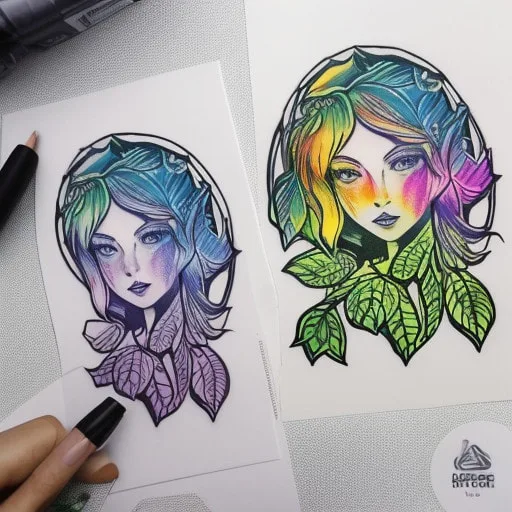
Creating personalized labels and stickers at home has never been easier or more fun, thanks to the versatile and cost-effective thermal paper. Whether you’re looking to organize your kitchen pantry, add a personal touch to gifts, or create unique stickers for your kids, thermal paper is your best ally. In this guide, we’ll explore everything you need to know about using thermal paper for your DIY projects.
What is Thermal Paper?
Thermal paper is a special fine paper that is coated with a material formulated to change color when exposed to heat. Unlike traditional printing methods that require ink, thermal printing is cleaner, faster, and often more economical. Discover more about the advantages of thermal paper and why it’s perfect for DIY enthusiasts.
Getting Started: Materials and Tools
Before diving into your first DIY project, gathering the right materials and tools is essential to ensure a smooth and successful process. Here’s what you’ll need:
Thermal Paper
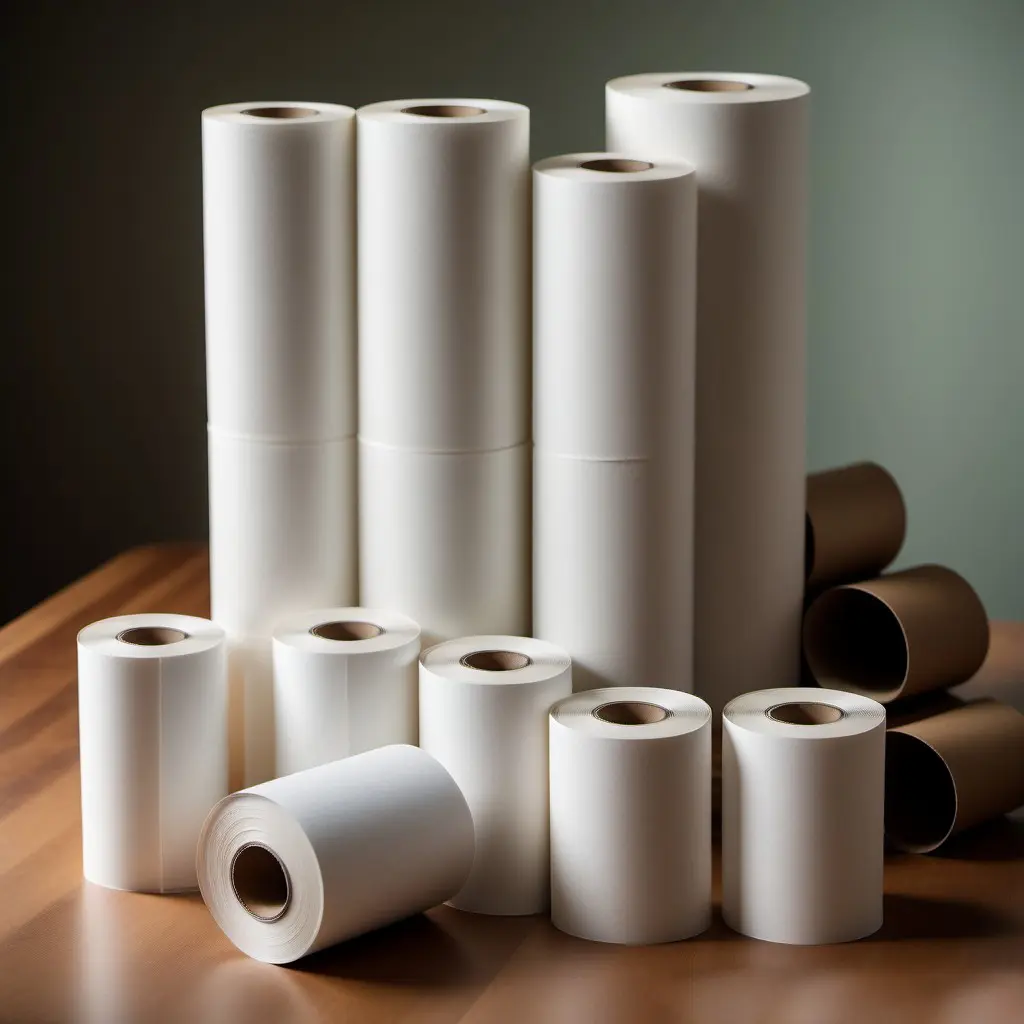
Thermal paper is the cornerstone of your DIY label and sticker projects. It’s a special type of paper that reacts to heat to create images and text without the need for ink. Here are some points to consider when choosing thermal paper:
Variety and Quality: Choose from our wide range of thermal paper products to find the right fit for your needs. We offer various sizes and qualities to suit different types of projects, from high-resolution photo-quality paper to more economical options for everyday use.
Durability: Look for thermal paper that is durable and resistant to smudging and fading. This ensures that your labels and stickers will remain clear and legible over time, even when exposed to different environmental conditions.
Eco-Friendly Options: Consider using eco-friendly thermal paper that is recyclable and made from sustainably sourced materials. This helps reduce your environmental impact while enjoying your DIY projects.
Thermal Printer
A thermal printer is a compact and user-friendly device designed for home use. Here’s what to look for when selecting a thermal printer:
Ease of Use: Choose a printer that is easy to set up and operate, especially if you are new to thermal printing. User-friendly interfaces and straightforward instructions can make the process much more enjoyable.
Compatibility: Ensure that the printer is compatible with your thermal paper and design software. Many modern thermal printers can connect wirelessly to your devices, making it easy to print from your computer, tablet, or smartphone.
Portability: Consider a portable thermal printer if you plan to take your projects on the go. These printers are lightweight and compact, allowing you to print labels and stickers wherever you are.
Adhesive Sheets

Adhesive sheets are essential for making your labels and stickers easily attachable to various surfaces. Here’s what to consider:
Strong Adhesion: Choose adhesive sheets that offer strong adhesion to ensure your labels and stickers stay in place. This is especially important for items that will be handled frequently or exposed to different conditions.
Versatility: Look for adhesive sheets that can be applied to a variety of surfaces, including glass, plastic, metal, and wood. This allows you to use your labels and stickers in many different ways around your home.
Removability: If you need temporary labels or stickers, consider using removable adhesive sheets. These can be easily peeled off without leaving residue, making them perfect for short-term projects or items that may need to be re-labeled.
Design Software
Design software is crucial for creating beautiful and customized labels and stickers. Here are some options to consider:
Canva: Canva is an online design tool that is perfect for beginners. It offers a wide range of templates, fonts, and graphics that you can use to create stunning designs with ease. Its drag-and-drop interface makes it simple to customize your labels and stickers.
Adobe Spark: Adobe Spark is another great tool for creating professional-looking designs. It offers more advanced features than Canva, allowing for greater customization and creativity. Adobe Spark is ideal for users who want to take their designs to the next level.
Microsoft Word: If you prefer using familiar software, Microsoft Word can also be a great option for designing labels and stickers. While it may not have as many design features as Canva or Adobe Spark, it is easy to use and provides enough functionality for basic projects.
By carefully selecting the right materials and tools, you’ll be well on your way to creating beautiful, high-quality labels and stickers that are perfect for organizing your home, personalizing gifts, or adding a unique touch to any project. Happy crafting!
Designing Your Labels and Stickers
Designing is the most exciting part of creating your own labels and stickers. This is where you can let your creativity shine and personalize your projects to suit your unique style and needs. Follow these steps to create stunning and effective labels and stickers:
Choose Your Style
The first step in the design process is deciding on the overall style and aesthetic of your labels and stickers. Consider the following elements:
Theme: What is the purpose of your labels or stickers? Are they for organizing your kitchen, labeling kids’ school supplies, or adding a personal touch to gifts? Choose a theme that fits the purpose and context.
Colors: Select a color scheme that matches the theme and your personal taste. For example, use soft pastels for a calming, minimalist look, or bright, vibrant colors for a playful and fun vibe.
Fonts: Fonts play a crucial role in the overall look and readability of your labels and stickers. Choose fonts that are clear and easy to read. For a professional look, opt for classic serif or sans-serif fonts. For a more whimsical or casual style, try decorative or handwritten fonts.
Use Design Tools
Once you have a clear idea of your style, it’s time to start designing. There are several user-friendly design tools available online that can help you create beautiful labels and stickers:
Canva: Canva is an excellent tool for beginners and experienced designers alike. It offers a vast library of templates, graphics, and fonts. You can drag and drop elements to create your design quickly and easily. Canva also allows you to upload your own images and graphics, giving you even more creative control.
Adobe Spark: Adobe Spark provides more advanced design features than Canva, making it ideal for users looking to create highly customized designs. With Adobe Spark, you can add animation, create unique layouts, and access a wide range of design assets.
Microsoft Word: For those who prefer using familiar software, Microsoft Word can also be used to design labels and stickers. While it may not have as many advanced features as Canva or Adobe Spark, it is straightforward to use and provides enough functionality for basic projects.
Templates and Ideas

If you’re feeling stuck or need some inspiration, templates and online resources can be incredibly helpful:
Templates: Many design tools, like Canva and Adobe Spark, offer pre-made templates that you can customize to suit your needs. These templates are designed by professionals and can save you a lot of time.
Online Inspiration: Look for design inspiration on websites like Pinterest, Etsy, and design blogs. You can find countless ideas for different styles and themes, from minimalist pantry labels to colorful kids’ stickers.
Customize: Once you’ve found a template or design you like, customize it to make it your own. Change the colors, fonts, and graphics to match your style and the purpose of your labels or stickers.
Final Touches
Before printing, make sure to review your design:
Proofread: Double-check all the text for spelling and grammatical errors. Accurate information is essential, especially for organizational or instructional labels.
Alignment and Spacing: Ensure that all elements of your design are properly aligned and evenly spaced. This helps create a professional and polished look.
Print Test: If possible, do a test print on regular paper to see how your design looks in real life. This can help you catch any issues and make adjustments before using your thermal paper.
By following these steps, you can create beautiful and personalized labels and stickers that are perfect for any project. Let your creativity flow and enjoy the process of designing something unique and functional.
Printing Your Designs
Once your designs are ready, the next step is bringing them to life through printing. Here’s a detailed guide to help you achieve the best results when printing your DIY labels and stickers using thermal paper.
Set Up Your Printer
Setting up your thermal printer correctly is crucial for ensuring high-quality prints and smooth operation. Follow these steps to get started:
Unbox and Inspect: Carefully unbox your thermal printer and inspect it for any visible damage. Familiarize yourself with the components and accessories included in the package.
Read the Manual: Take the time to read the manufacturer’s instructions and user manual. Each printer model may have specific setup requirements.
Power Connection: Connect the printer to a power source using the provided power adapter or cable. Ensure the connection is secure.
Software Installation: If your printer requires specific drivers or software, install them on your computer. This software often provides necessary print settings and enhances compatibility.
Connect to Your Computer: Use a USB cable or connect wirelessly if your printer supports it. Ensure the connection is stable for seamless communication between your computer and printer.
Load the Thermal Paper
Properly loading thermal paper is essential to prevent jams and ensure consistent print quality. Follow these steps to load the paper correctly:
Open the Printer Cover: Locate and open the printer cover to access the paper compartment.
Insert the Paper Roll: Place the thermal paper roll in the compartment, ensuring it is oriented correctly. The thermal coating should face outward to be exposed to the printer’s heating element.
Align the Paper: Feed the paper through the guides or slots as specified in the manual. Make sure it is straight and not crumpled.
Close the Printer Cover: Once the paper is correctly loaded and aligned, close the printer cover securely to hold the paper in place.
With your printer set up and thermal paper loaded, you are ready to print your designs. Follow these steps to ensure high-quality prints:
Prepare the Design File: Open your design file on your computer. Ensure it is in the correct format (e.g., PDF, PNG) and resolution for printing.
Adjust Printer Settings: Access the print settings through your design software or printer software. Adjust settings such as paper size, print quality, and orientation to match your design specifications.
Print Preview: Use the print preview function to check how your design will appear on the thermal paper. This helps you identify any alignment or formatting issues before printing.
Send to Printer: Once you are satisfied with the preview, send the print job to your thermal printer. Click “Print” and watch as your labels and stickers come to life.
Monitor the Print Job: Keep an eye on the printer during the printing process to ensure it runs smoothly. If any issues arise, such as paper jams or low-quality prints, refer to the troubleshooting section in the manual.
Troubleshooting Common Issues
In case you encounter any issues while printing, here are some common problems and solutions:
Paper Jams: If the paper jams, turn off the printer and carefully remove the jammed paper. Reload the paper and try printing again.
Poor Print Quality: Ensure the thermal paper is loaded correctly and that the printer settings match the paper type. Clean the printer’s thermal head if necessary.
Connection Issues: Check the cable connections and ensure the printer is properly connected to your computer. Restart the printer and your computer if needed.
Final Tips for Perfect Prints
Quality Check: After printing, inspect the labels and stickers for any defects or inconsistencies. Ensure the text and images are clear and sharp.
Cutting and Storing: Carefully cut the labels and stickers to the desired size using a paper cutter or scissors. Store any unused thermal paper in a cool, dry place to maintain its quality.
By following these detailed steps, you can ensure that your DIY labels and stickers are printed perfectly, showcasing your creativity and attention to detail. Enjoy the satisfaction of seeing your designs come to life through the magic of thermal printing!
Cutting and Applying Your Labels and Stickers
After you’ve printed your beautiful DIY labels and stickers, the next steps are cutting them to the desired size and shape and applying them to various surfaces. These steps ensure that your labels and stickers not only look professional but also adhere well and stay in place.
Cutting Your Labels and Stickers
Accurate cutting is essential to achieve clean edges and a professional look. Here’s how to do it:
Gather Your Tools: For precise cutting, you’ll need a high-quality paper cutter or a pair of sharp scissors. A ruler and a cutting mat can also be helpful for straight edges and protecting surfaces.
Plan Your Cuts: Before you start cutting, lay out your printed labels and stickers. Use a ruler to measure and mark where you need to cut, ensuring each piece is the correct size and shape.
Use a Paper Cutter: If you’re using a paper cutter, align the printed sheet according to the marks you made. Hold the paper steady and slice through it with the cutter, maintaining a steady hand to avoid jagged edges.
Cut with Scissors: For more intricate shapes, scissors may be more practical. Carefully follow the outline of each label or sticker. Take your time to ensure smooth, even cuts, especially around curves and corners.
Check Your Work: After cutting, inspect each label and sticker. Trim any rough edges or uneven areas to ensure a polished finish.
Applying Your Labels and Stickers
Once your labels and stickers are cut to perfection, it’s time to apply them. Proper application ensures they adhere well and remain in place over time. Follow these steps:
Prepare the Surface: The surface where you apply the label or sticker should be clean, dry, and smooth. Use a damp cloth or rubbing alcohol to remove any dirt, dust, or oils. Allow the surface to dry completely before proceeding.
Peel the Backing: Carefully peel off the backing of the adhesive sheet. Start from one corner and slowly peel away the backing to avoid touching the adhesive with your fingers, which can reduce its sticking power.
Position the Label or Sticker: Align the label or sticker with the desired area. Make sure it is straight and positioned correctly before sticking it down. If necessary, use a ruler or level to ensure perfect alignment.
Apply Even Pressure: Once positioned, press the label or sticker firmly onto the surface. Start from the center and work your way out to the edges to smooth out any air bubbles and ensure even adhesion. Use a credit card or a squeegee for larger labels to press down evenly.
Check for Bubbles: If any air bubbles remain, gently lift the edge of the label or sticker and reapply it, smoothing out the bubbles as you go. For smaller bubbles, use a pin to puncture them and then smooth out the air.
Tips for Long-Lasting Adhesion
To ensure your labels and stickers stay in place for as long as possible, follow these additional tips:
Surface Compatibility: Make sure the surface is suitable for adhesive labels. Smooth, non-porous surfaces like glass, plastic, and metal work best.
Avoid High Moisture Areas: Labels and stickers may not adhere well in high moisture environments. If you need to label something in a humid area, consider using waterproof or weatherproof thermal paper.
Apply at Room Temperature: Extreme temperatures can affect adhesive properties. Apply your labels and stickers at room temperature for optimal results.
Creative Applications
Now that you know how to cut and apply your labels and stickers, let your creativity shine. Here are some ideas for using your DIY labels and stickers around your home:
Kitchen Organization: Label jars, spice containers, and pantry shelves for a neat and tidy kitchen.
Personalized Gifts: Add a custom touch to gifts with personalized stickers featuring the recipient’s name or a special message.
Kids’ Projects: Create fun and colorful stickers for your children’s books, toys, and school supplies.
Home Office: Organize files, folders, and office supplies with clear, professional labels.
By following these detailed steps for cutting and applying your labels and stickers, you’ll achieve a polished and professional look that enhances any project. Enjoy the satisfaction of creating customized labels and stickers that are both functional and aesthetically pleasing!
Environmental Considerations
Using eco-friendly thermal paper options is a great way to enjoy your DIY projects while being mindful of the environment. Our thermal paper is designed to reduce waste and support sustainable practices.
Future Innovations
The future of thermal paper technology is bright, with continuous innovations enhancing its applications. Keep an eye out for new products that offer even greater durability, clarity, and environmental benefits.
Conclusion
Thermal paper offers a world of possibilities for DIY enthusiasts. Its cost-effectiveness, durability, and ease of use make it the perfect choice for creating personalized labels and stickers at home. Start exploring our extensive range of thermal paper products today and unleash your creativity.
For more tips and inspiration, check out our blog and discover how thermal paper can transform your DIY projects. Happy crafting!