
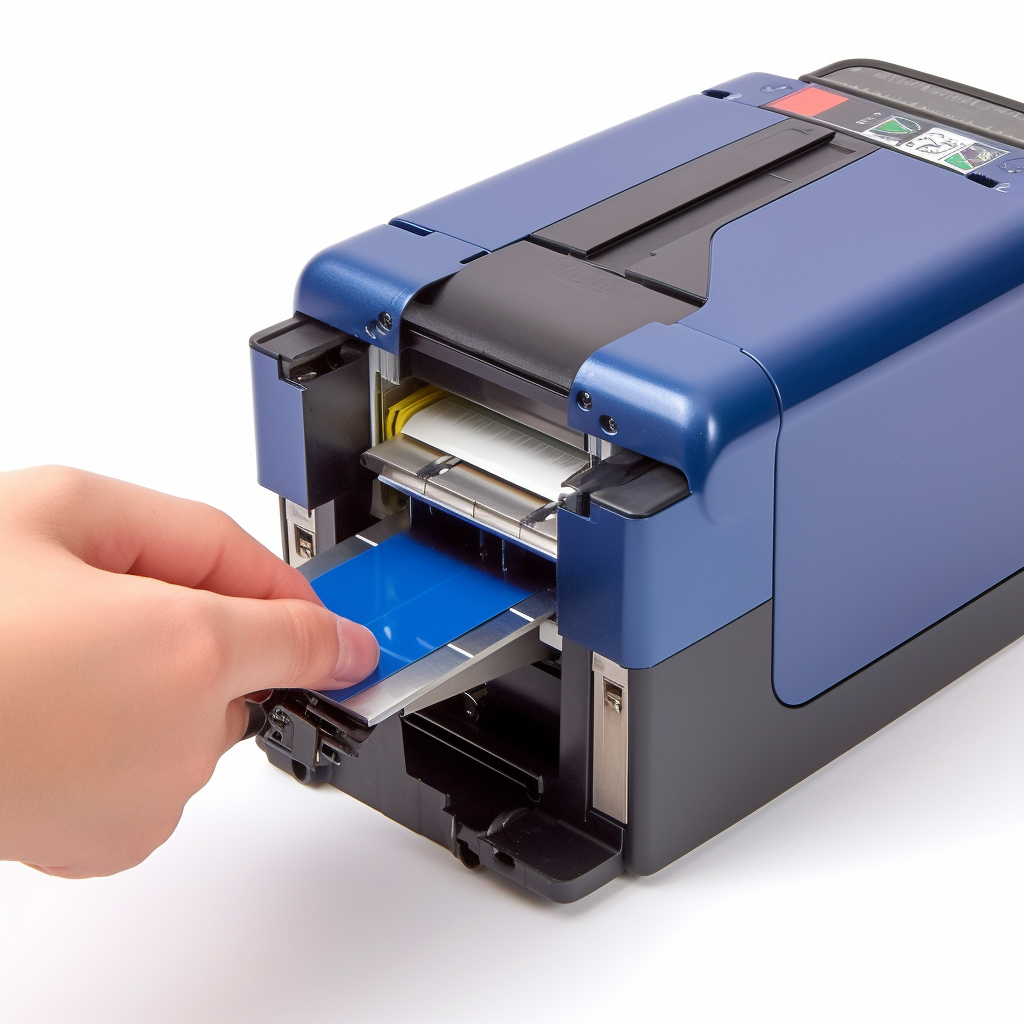
Installing a ribbon cartridge in an Epson LX 310 printer is a relatively simple process that can be completed in just a few steps. Here’s a step-by-step guide on how to install a ribbon cartridge in an Epson LX 310 printer:
Step 1: Turn off the printer and unplug it from the power source.
Step 2: Open the printer cover by pulling the tab located on the right side of the printer.
Step 3: Remove the old ribbon cartridge by pulling it out gently.
Step 4: Take the new ribbon cartridge out of its package and remove any protective materials.
Step 5: Insert the ribbon cartridge into the printer by aligning the two holes on the cartridge with the pins on the printer.
Step 6: Push the ribbon cartridge firmly into place until it clicks.
Step 7: Close the printer cover and plug the printer back in.
Step 8: Turn on the printer and wait for it to initialize.
Step 9: Print a test page to ensure that the ribbon cartridge is installed correctly.
It’s important to note that the Epson LX 310 printer uses a specific type of ribbon cartridge, so it’s essential to purchase the correct cartridge model to ensure optimal performance. Additionally, it’s recommended to keep a spare ribbon cartridge on hand to avoid downtime when the current cartridge runs out of ink.
In conclusion, installing a ribbon cartridge in an Epson LX 310 printer is a straightforward process that can be completed quickly and easily. With a little bit of patience and attention to detail, anyone can install a ribbon cartridge in their Epson LX 310 printer and keep their printing tasks running smoothly.